Jamovi is a user-friendly statistical software designed to simplify data analysis. Whether you’re a beginner or an experienced researcher, this guide will help you download and use Jamovi effectively.
What is Jamovi?
Jamovi is an open-source statistical platform with an intuitive interface. It’s widely used in academia and research due to its simplicity and advanced features. The software supports a wide range of statistical tests and allows for seamless integration with R for extended capabilities.
How to Download Jamovi
Follow these simple steps to download Jamovi onto your computer:
Step 1: Visit the Official Website
Open your browser and navigate to jamovi.org.
Ensure you are on the official site to avoid downloading malicious software.
Step 2: Choose Your Operating System
On the homepage, locate the Download button.
Select the version compatible with your operating system (Windows, macOS, or Linux).
Step 3: Start the Download
Click the appropriate link to begin the download.
Wait for the download to complete. This typically takes only a few minutes.
Step 4: Install the Software
Locate the downloaded file in your computer’s downloads folder.
Double-click the installer file and follow the on-screen instructions.
Accept the license agreement and choose the default installation settings.
Step 5: Launch Jamovi
After installation, open Jamovi by clicking its icon on your desktop or applications folder.
The software will load quickly, ready for use.
Getting Started with Jamovi
Here’s how to begin using Jamovi for your research projects:
Step 1: Understand the Interface
Familiarise yourself with the clean and organised layout.
The main sections include:
Data View: For entering and viewing raw data.
Analyses: Displays the results of your statistical tests.
Modules Tab: To access additional functionalities.

Step 2: Import Your Data
Jamovi supports several file types, including CSV, Excel, and SPSS.
Click on File > Open and select your dataset.
Ensure the data is clean and properly formatted.
Step 3: Perform Basic Analysis
Navigate to the Analyses menu.
Choose a statistical test, such as descriptives, t-tests, ANOVA, or regression.
Input your variables and customise the settings.

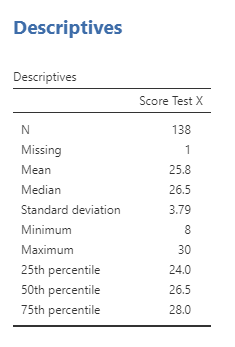
Step 4: Interpret Results
Results appear instantly in the Output Pane.
The software provides clear tables and charts for easy interpretation.


Advanced Features of Jamovi
Use Built-in Modules
Jamovi comes with pre-installed modules for various analyses.
Explore the Modules Library to add new tools like mediation analysis or factor analysis.
Integrate with R
Jamovi supports R scripts for advanced users.
Use the Rj Editor module to write and execute R code directly within the platform.
 UNLOCK YOUR POTENTIAL
Leave a comment